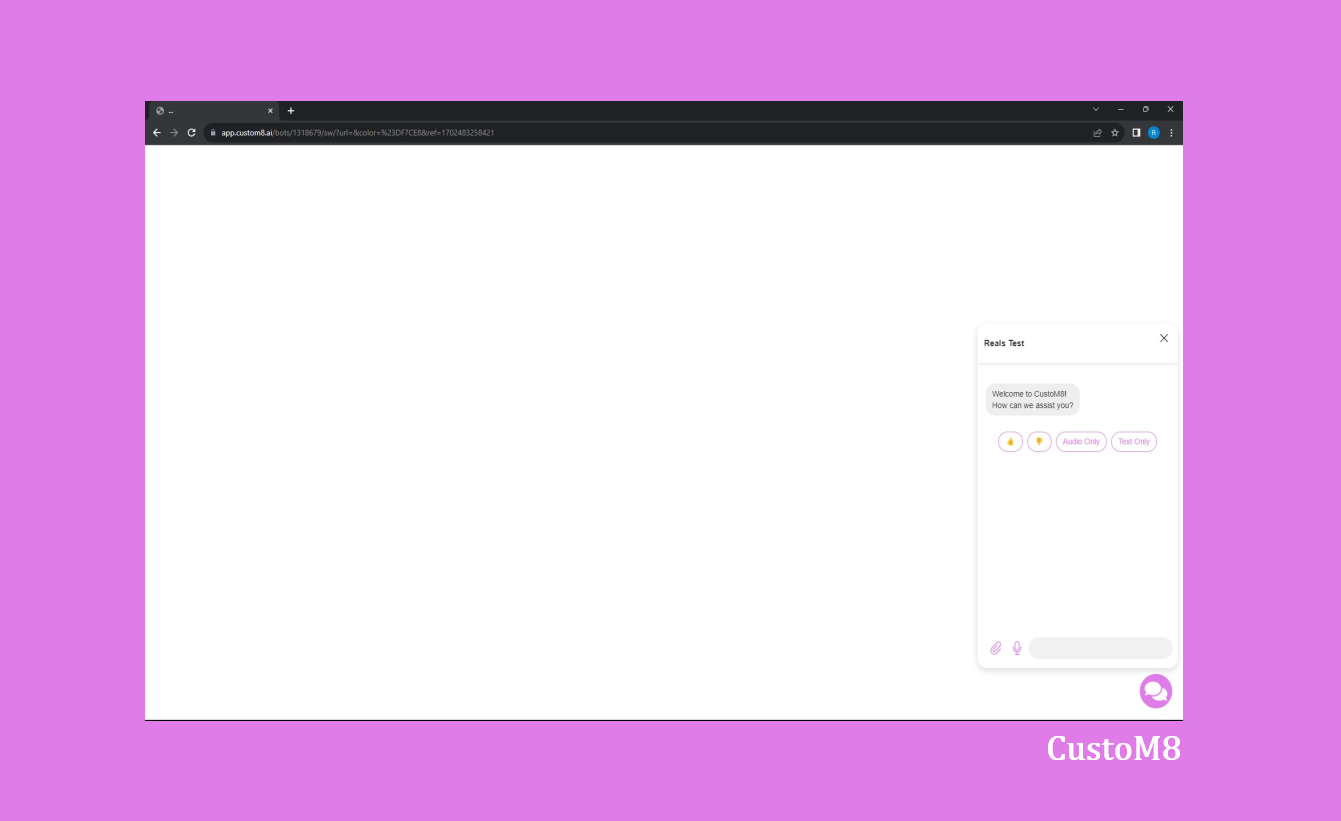
CustoM8's Webchat enables you to incorporate a chatbot on your website.
This standalone feature doesn't require linkage to any third-party platforms such as Facebook, Telegram, WhatsApp, or Google. This eliminates the need for your customers to create new accounts and facilitates more effortless interactions.
Additionally, if you gather customer emails or phone numbers via webchat, your business can easily communicate with them through an SMS or email whenever needed.
Embedding the Webchat Code into Your Website
1 – Copy and insert the following code into your website’s body or footer.
Copy code:
<script src="https://app.custom8.ai/webchat/plugin.js"></script>
<script>
ktt10.setup({ pageId: YOUR_ACCOUNT_ID});
</script>
This simple code snippet will embed a webchat on your website. Implementing the Webchat as a Standalone Page:
Navigate to the URL, replacing "YOUR_ACCOUNT_ID" with your account ID: https://app.custom8.ai/webchat/?p=YOUR_ACCOUNT_ID
Customizing Color Scheme
To change the color of the webchat interface, include a 'color' attribute within the setup function as follows:
Copy code:
<script src="https://app.custom8.ai/webchat/plugin.js"></script>
<script>
ktt10.setup({ pageId: YOUR_ACCOUNT_ID, color: "#ff0000"});
</script>
Replace "#ff0000" with your desired color code.
Switching Webchat Templates
Custom8 currently offers three templates for webchat. We'll soon offer more template options. To change the template, include a 'template' attribute within the setup function as follows:
Copy code:
<script src="https://app.custom8.ai/webchat/plugin.js"></script>
<script>
ktt10.setup(
{
pageId: YOUR_ACCOUNT_ID,
color: "#007BFF",
hideHeader: true,
template: "template1"
}
);
</script>
CustoM8 currently provides three templates: a standard default template and two additional templates named "template1" and "template2". More templates will be introduced in the future.
Displaying the Account Profile Picture as a Persona
To showcase your account profile image as a persona within the chat, use the 'showPersona' attribute as follows:
Copy code:
<script src="https://app.custom8.ai/webchat/plugin.js"></script>
<script>
ktt10.setup({ pageId: YOUR_ACCOUNT_ID, showPersona: true});
</script>
Modifying the Chat Icon
To change the chat icon, use the 'icon' attribute and specify the URL of your desired image:
Copy code:
<script src="https://app.custom8.ai/webchat/plugin.js"></script>
<script>
ktt10.setup({ pageId: YOUR_ACCOUNT_ID, showPersona: true, icon: "YOUR_IMAGE_URL"});
</script>
Replace "YOUR_IMAGE_URL" with the URL of your chosen image.
Transitioning the Conversation from Any Channel to Webchat
Not all channels support the comprehensive features offered by webchat. For example, if a customer is communicating with your business via SMS and you want to showcase a gallery list of your services, you can transfer the conversation to webchat.
Simply send the user a message containing the following system custom field: {{webchat}}
To automatically start a specific flow or step when the user accesses this link, append "&ref=FLOW_OR_STEP_ID" to the end.
For example, if the FLOW_ID is 111111, the link would be:
{{webchat}}&ref=111111
This link will load previous messages from the conversation between the bot and the user.
If you prefer not to load old messages, append "&lc=0" at the end of the link:
{{webchat}}&ref=111111&lc=0
Example Image and Code:
<script src="https://app.custom8.ai/webchat/plugin.js"></script><script>ktt10.setup({"pageId":"1970516","headerTitle":"CustoM8","ref":"1679880775117", "icon": "https://i.ibb.co/P9Kd08V/Untitled-2.png", "color": "#37d6b6", "template": "template1"});</script> | 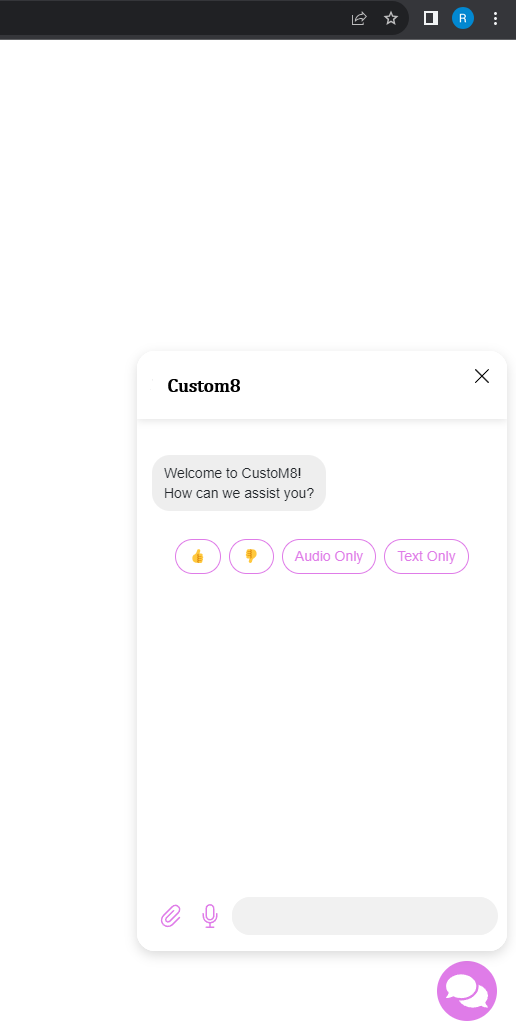 |
<script src="https://app.custom8.ai/webchat/plugin.js"></script><script>ktt10.setup({"pageId":"1970516","headerTitle":"CustoM8","ref":"1679880775117", "icon": "https://i.ibb.co/P9Kd08V/Untitled-2.png", "color": "#37d6b6", "template": "template1", "hideHeader": "true"});</script> | 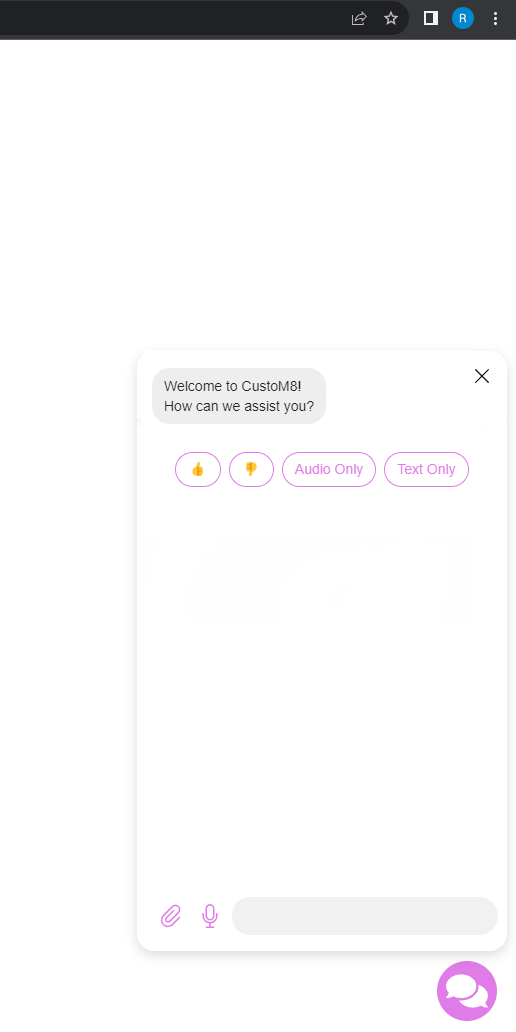 |
iFrame
<div style="width:100%; padding-bottom:56.25%; position:relative;">
<iframe src="{{Your WebChat Link HERE}}" style="position:absolute; top:0px; left:0px;
width:100%; height:100%; border: none; overflow: hidden;">iframe>
div></iframe></div>
Facebook Chat Plug-in
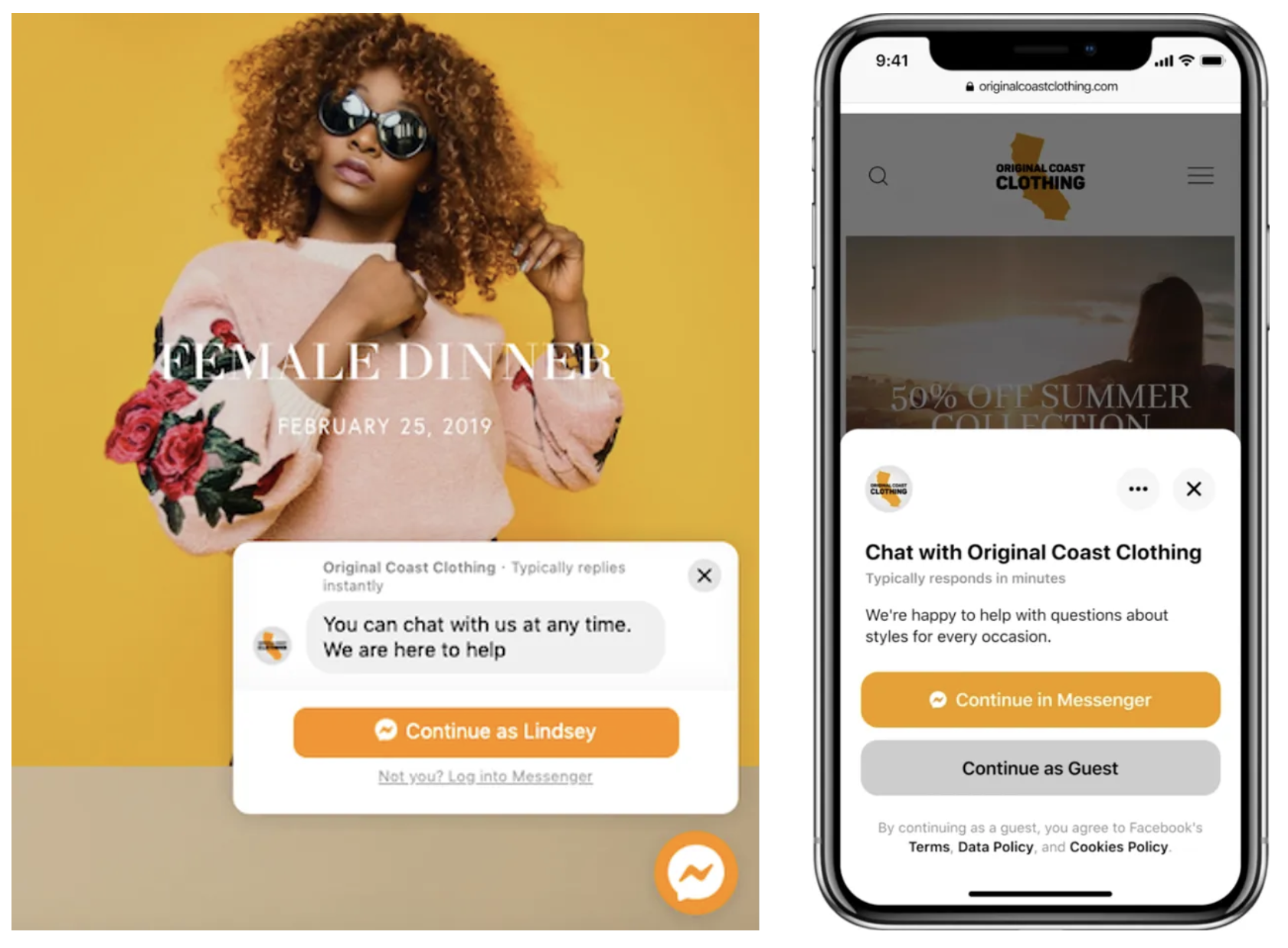
Alternatively, you are welcome to use the Facebook-provided webchat plug-in.
Please ensure you've connected your Facebook page account and then go to settings > channels > Facebook Messenger > Webchat plugin.
Note: You must be sure to Whitelist your URL in the Facebook Webchat Plugin Settings.
Was this article helpful?
That’s Great!
Thank you for your feedback
Sorry! We couldn't be helpful
Thank you for your feedback
Feedback sent
We appreciate your effort and will try to fix the article